반응형
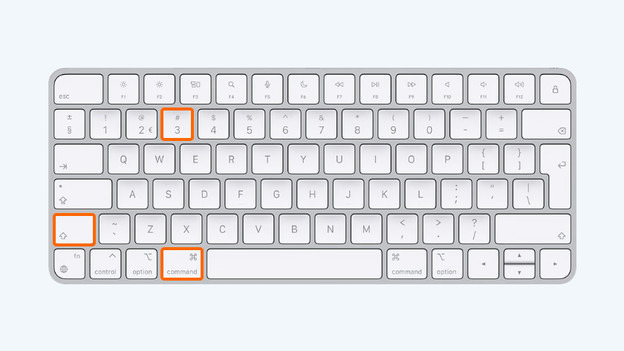
Tip 1: take a screenshot of the whole screen
If you want to capture the entire screen, use the following key combination:
- Press Shift + Command (⌘) + 3.
- The screenshot will appear on your desktop.

Tip 2: take a screenshot of 1 window
If you want to take a screenshot of a specific window that's open, use a different key combination:
- Press Shift + Command (⌘) + 4.
- Press the spacebar, which turns your mouse into a camera.
- Use the mouse to click the window that you want to take a screenshot of.
- The screenshot will appear on your desktop.
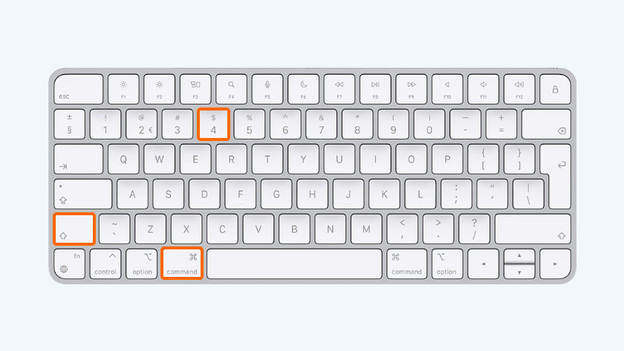
Tip 3: take a screenshot of a selection
If you want to take a screenshot of a manual selection of the screen, go through the following steps:
- Press Shift + Command (⌘) + 4.
- The mouse now turns into a cross.
- Hold down the left mouse button in the place you want to start your selection and drag the cross over the screen.
- At the end of your selection, you release the left mouse button.
- The screenshot will appear on your desktop.
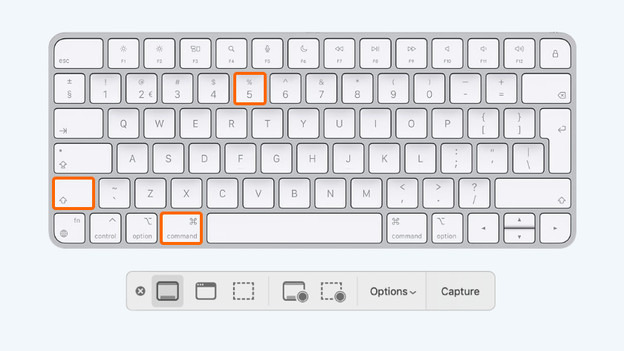
Tip 4: take a screenshot with the Screenshot app
The macOS Mojave and onwards provide a Screenshot app. In this app, you can find extra tools. If you want to open the app, use the following key combination:
- Press Shift + Command (⌘) + 5.
From left to right, the icons in the app mean the following:
- Capture the entire screen
- Capture a window
- Capture part of the screen
- Record the entire screen
- Record part of the screen
Below Options, you can find things like a timer, the option to record the cursor, and you can select the location where you want to store your screenshots or recordings.
반응형
'記錄' 카테고리의 다른 글
| 소프트웨어 엔지니어링의 향후 2년 (The Next Two Years of Software Engineering): ”숙련의 재정의“ (1) | 2026.01.15 |
|---|---|
| Anthropic의 새로운 'Claude Cowork' 기능 심층 분석 (0) | 2026.01.14 |
| MacBook 개발용 구성 비교 정리: M4 Pro vs M5 (0) | 2026.01.09 |
| 기록 시작: AI 지식 기록 외 과정 기록용 (0) | 2026.01.09 |
| 취향이 지금 시대의 새로운 지능이다 (1) | 2025.12.28 |